



To use Chunk Base, you need your world seed, the correct edition—Java or Bedrock—and its version. Enter these in Seed Map, choose a dimension and enable the biomes or structures you want. Then use the X and Z coordinates in Minecraft. You do not need to install a mod to view the map.
The important part is not learning dozens of buttons: it is avoiding a search with the wrong world settings. This guide includes a reproducible example and a short checklist for maps that do not match your game.
What Chunk Base shows—and what it does not
Chunk Base calculates a map from a seed. Use it to plan an expedition, compare base locations or look for structures. It is not a live view of your server: it cannot show houses your friends built, looted chests or player-made changes.
A marker helps you explore; it is not an absolute guarantee. The official Village Finder explains its accuracy limitations. An underground structure may also be below you even when nothing is visible on the surface.
1. Get the seed without changing your world
- Java: open chat and enter
/seed. On servers, permission may be required; ask the administrator if necessary. - Bedrock: check the seed field in world settings. If you cannot see it on a Realm or server, ask the owner.
- Both: copy the entire number, including a minus sign. A world name is not a substitute.
Do not enable cheats just to consult an external map. Before sharing a server seed, agree with your group whether they want locations revealed or prefer exploring without spoilers.
2. Configure Seed Map
- Open Chunk Base Seed Map.
- Paste the number into Seed.
- Select the edition and version. Bedrock is not Java, even with the same seed number.
- Choose Overworld, The Nether or The End.
- Enable the layers you need and zoom in to distinguish their icons.
In a world updated over several years, older areas were generated in earlier versions. For those areas, the terrain's generation version matters, not just the version currently installed. World-generation mods may also make the standard map inaccurate. Chunk Base documents these limitations.
Real example: seed 12345 in Java 26.3
We exported this map on September 23, 2026 using seed 12345, Java 26.3, Overworld and center X=0, Z=0. Reproduce the setup with this example link. The image uses Seed Map Legacy, the 2D view available during our review; the new interface places some controls differently.
Take your next adventure to a shared server
Found the perfect place to build? Explore Teramont Minecraft hosting and share your world with friends. Back up your world before importing or replacing it.

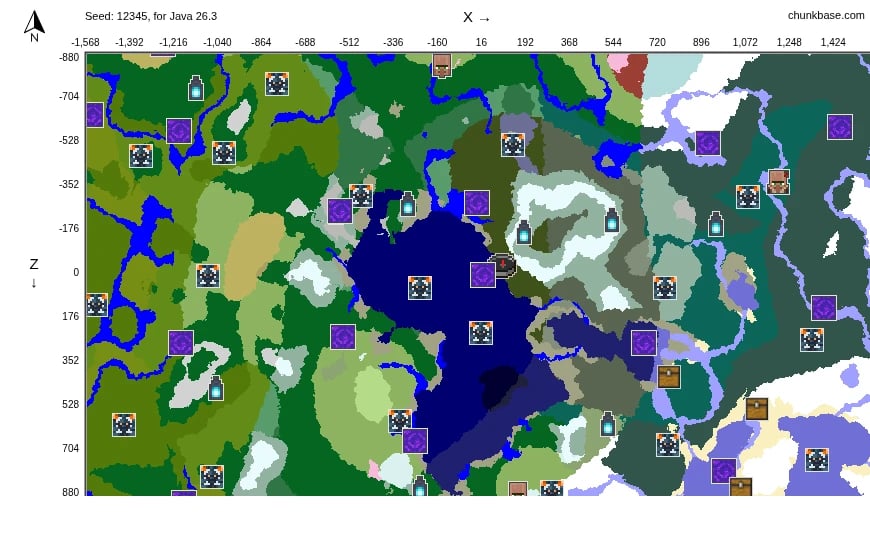
The map shows a large area of water near the center, with several markers around it. To practice, keep Village enabled, select a village icon and record its displayed coordinates. Then switch your attention to biomes and compare the surroundings. You do not need a new Minecraft save to learn how to read the map.
Verification scope: we checked the settings and export in Chunk Base. We did not explore this seed in Minecraft, so these markers are not presented as in-game-verified locations.
3. Find a biome or structure
| Looking for… | Select | Check before travelling |
|---|---|---|
| Cherry trees | Cherry Grove in the biome selector. | Read the biome name instead of relying on color alone. |
| A village | The Village layer. | Open its marker and copy X and Z. |
| An ancient city | The Ancient City layer. | It is underground: reaching the horizontal location is not enough. |
| A Nether structure | The Nether dimension first. | Use that dimension's map and coordinates. |
Legacy uses Highlight biomes; the new interface provides search and filters. The official Biome Finder is another way to focus on biomes. For caves, check the height level: a surface map does not tell the whole story.
4. Read X and Z without getting lost
X and Z describe horizontal position; Y is height. In Java, coordinates are available in the debug display, normally opened with F3. In Bedrock, enable Show Coordinates in settings. See Minecraft's exploration guide.
Here is a teaching example, not a village location from the seed above: you are at X=100, Z=200 and your destination is X=500, Z=-100. You need a change of +400 in X and -300 in Z. Check that both values approach the destination as you travel. Do not confuse Z with Y or drop a minus sign.
When Chunk Base does not match your world
- The whole landscape is wrong: check seed, edition, version and generation settings.
- Only an older area differs: try the version that generated that region.
- Icons are missing: check the layer and zoom in.
- You arrived but see no structure: confirm the dimension and whether it is underground; explore around the point without digging straight down.
Quick questions
Does it work for Java and Bedrock?
Yes, with the appropriate edition and version. Do not assume every Java structure coordinate also works in Bedrock.
Can I use it without the seed?
To map your world, you need its seed or a compatible save file from which it can be obtained. A server name or address is not enough.
Will it change my save?
Viewing the map does not modify your world. Enabling cheats, teleporting or changing files afterward are separate actions.
Our advice: start by checking a location you already know. If it matches, plan a short route, bring supplies and record your return coordinates. A map helps; it does not replace preparation.
Still choosing a world? Browse our best Minecraft seeds and use this guide to check each option’s edition and surroundings.