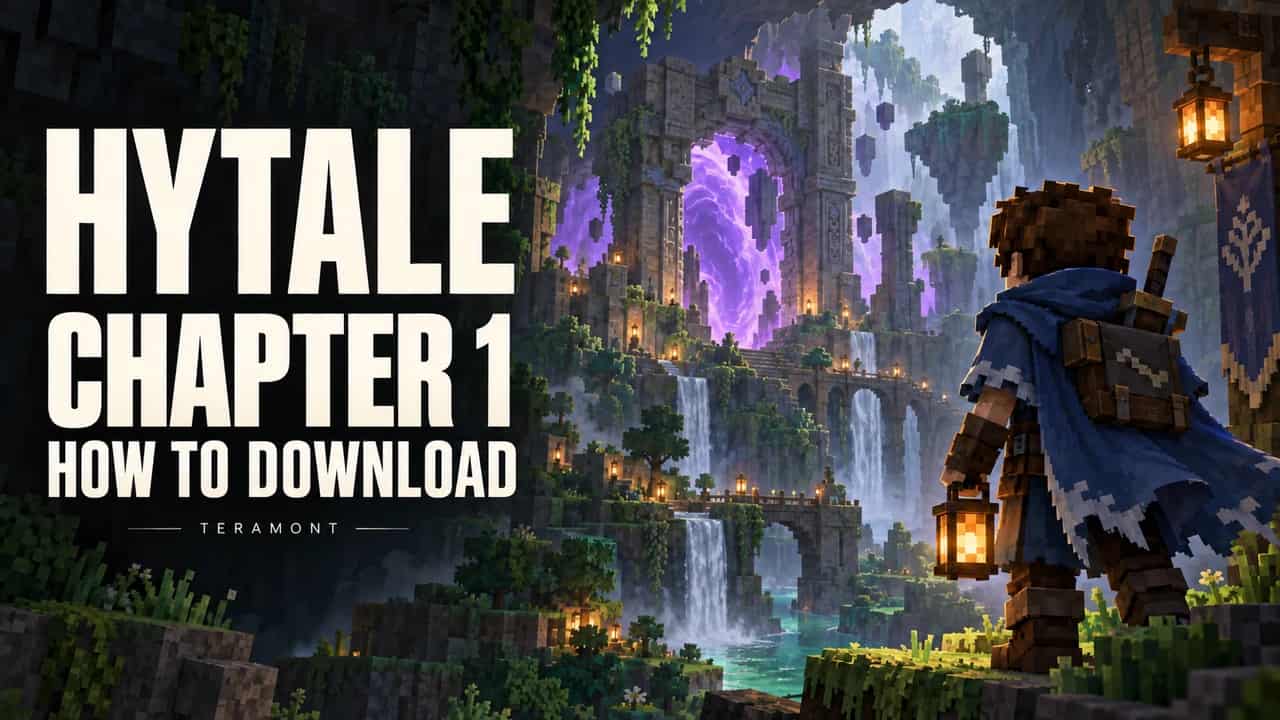



Hytale Chapter 1: Out of the Breach is available as of October 12, 2026. To play, download or update Hytale through its official launcher. This is an Early Access update, not the release of version 1.0.
Here are the correct link, installation steps and a practical checklist to get started without risking your world. If you only need the installer, open the official Hytale download page; it may ask you to sign in first.
What is new in Hytale Chapter 1?
The Hypixel Studios announcement confirms Goblin Breach, a handcrafted dungeon, 15 Runestones —7 abilities and 8 modifiers— and over 100 cosmetic options. Spanish and French are also supported.
Start at the Forgotten Temple and its Goblin Lab in Exploration Mode, using an existing or new world. The Chapter screen guides progression. Prop Hunt and Shuffle Jam are announced, but minigames will become available shortly after the chapter: that is not confirmation of immediate availability.
Your next adventure, with your friends
Explore TERAMONT's Hytale hosting plans and prepare a server for your group. Each player needs their own game license.
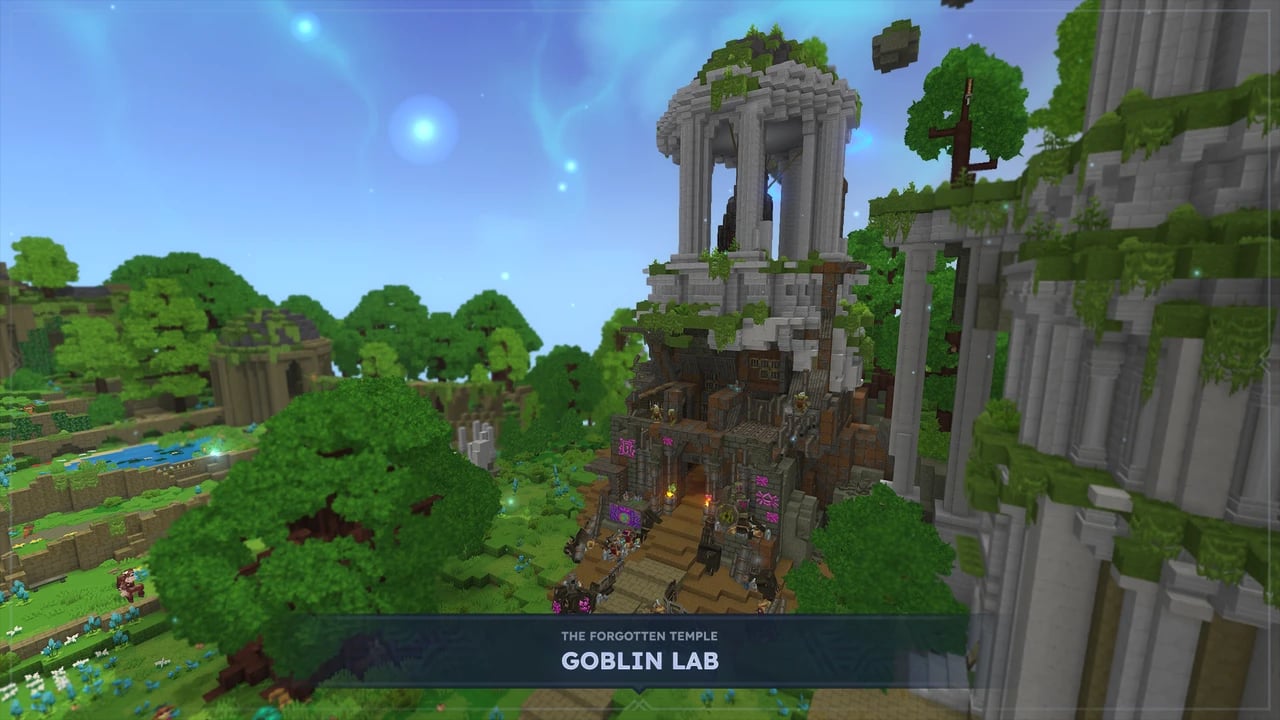
Official Hypixel Studios image from the chapter announcement. This is not a screenshot of a TERAMONT playthrough.
How to download Hytale, step by step
- Check your game access. Use your account and the profile holding your license. If you do not have one, compare editions in the official store. Downloading the launcher does not grant a free license.
- Open the official download page. At accounts.hytale.com/download, select your operating system's installer.
- Install the launcher. On Windows, run the installer and choose the folders. On macOS, drag the application into Applications. On Linux, use the official Flatpak package.
- Install the game. Open the launcher and select Install. Let it finish before launching.
These steps follow the Hypixel Studios download guide. You do not need a separate executable called “Chapter 1” from a third-party website.
If Hytale is already installed
Our recommendation is to close the game, reopen the official launcher and complete any offered update before loading a save. If you were testing a preview, check the selected channel and version: pre-release and the public release are different options.
Do not start by reinstalling or deleting your world. Keep an external backup before changing versions. For a group, agree on matching client and server versions before the session; this helps separate download, connection and mod problems.
System requirements: check your computer first
This selection from the current official requirements provides a starting point. The developer's FPS targets are not our measurements or a guarantee for modded worlds.
| Component | Published minimum | Recommended |
|---|---|---|
| RAM | 8 GB | 16 GB |
| Free SSD space | 10 GB | 20 GB |
| Reference CPU | Core i5-7500 / Ryzen 3 1200 / Apple M1 | Core i5-10400 / Ryzen 5 3600 / Apple M2 |
The requirements cover Windows, Linux x64 and Apple Silicon. Check the supported OS version and GPU there as well: enough RAM alone is not sufficient. Required free space is not the exact download size.
Download or connection problems: what to check first
This is our recommended troubleshooting sequence, not a list of confirmed launch bugs:
| Symptom | First check | Avoid |
|---|---|---|
| The download opens a login screen | Check that the domain is accounts.hytale.com, then sign in. | Giving your password to an “alternative launcher.” |
| Your purchased access is missing | Check the account and profile; keep the receipt for support. | Buying another copy before checking the first. |
| The game opens, but your server does not connect | Record the error and compare client, server and mod versions. | Assuming you need more RAM without identifying the cause. |
| A modded save fails | Reproduce it in an isolated copy and check mod updates. | Deleting mods or files from your only copy of the world. |
For example, if three friends can connect and one cannot, start by comparing that player's version and error. If nobody can connect, also review server status and logs. This distinction guides investigation; it does not identify the cause on its own.
Before updating a shared server
- Schedule maintenance. Tell your group and avoid changes while people are playing.
- Make a complete backup. Store the world, configuration and mods separately. Check that you know how to restore them.
- Test on a copy. Update that environment, connect, save and restart. Verify that the save still loads before touching the main server.
- Reopen on an agreed version. Check connection and progress with one player before inviting everyone back.
For technical context, the official server manual specifies Java 25 and at least 4 GB of memory. That is a starting point, not a capacity guarantee: simultaneous exploration, view distance and mods change the workload.
If you want a world for your group, explore our Hytale server hosting and the first-installation guide (Spanish). Buying hosting does not replace each player's game license.
Editorial review: October 12, 2026. We cross-checked the announcement, requirements and official links. We have not played this chapter or run a benchmark; backup and troubleshooting steps are operational recommendations. The cover and Monty are AI-generated illustrations, not gameplay footage.